
SUMMARY
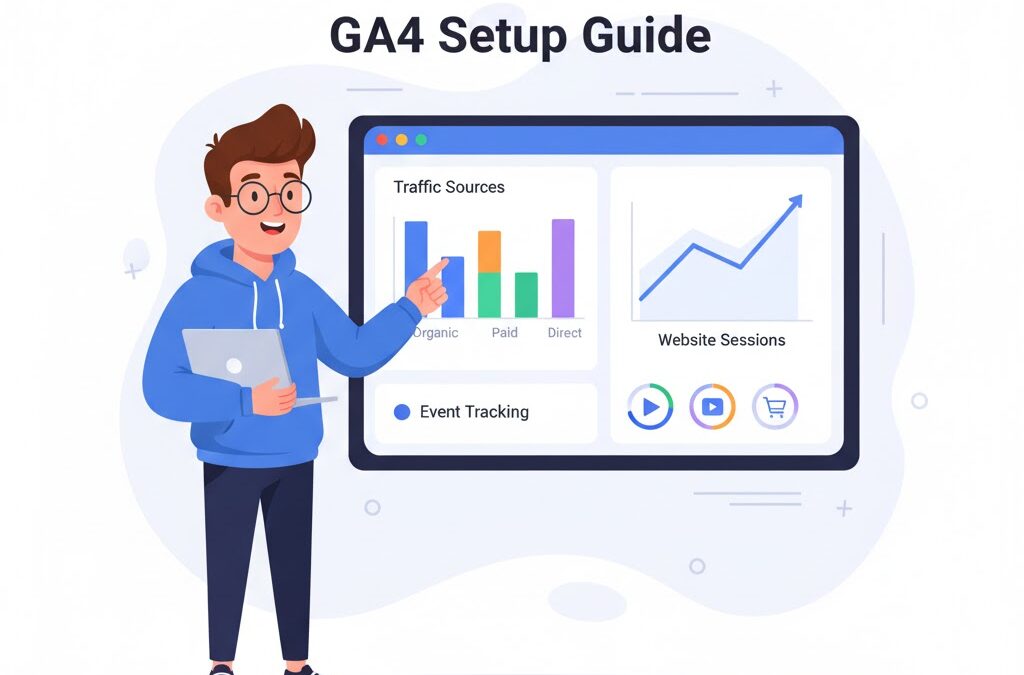
A GA4 Setup Guide shows you how to install, configure, and use Google Analytics 4 to track website or app performance. You start by creating a GA4 property, adding a data stream, installing your tracking tag, enabling key features, and configuring events and conversions. This guide explains each step in simple language so anyone can set up GA4 correctly in 2025, without technical skills.
Understanding GA4 and Why It Matters in 2025
1. What Is GA4?
Google Analytics 4, or GA4, is Google’s latest platform for tracking how people use your website or app. The old version, Universal Analytics, stopped working in 2023. GA4 is now the only version supported worldwide.
GA4 measures everything with events, not sessions. This makes data more flexible, more accurate, and easier to understand. It also works across devices, which is important because people switch between phones, laptops, and apps all day.
This GA4 Setup Guide will help you learn what GA4 does, how it collects data, and how you can set it up the right way.
2. Why Google Created GA4
There are four major reasons why GA4 replaced Universal Analytics:
1. Privacy laws changed.
Countries now require strict privacy controls. GA4 follows these laws.
2. People use many devices.
One user may switch between a laptop and a phone. GA4 tracks the full journey.
3. Machine learning helps fill gaps.
With data loss increasing, GA4 uses predictive modelling to give cleaner insights.
4. Marketers need deeper insights.
GA4 tracks content, clicks, scrolls, conversions, and funnels, without extra code.
This GA4 Setup Guide makes these features easy to understand, even if you’re new to analytics.
3. Main Features of GA4 (Explained Simply)
A beginner should know these features before setup:
Event-Based Tracking
Everything is an event: page views, scrolls, clicks.
Enhanced Measurement
GA4 auto-tracks:
• scrolls
• outbound clicks
• file downloads
• video engagement
• site search
Realtime Reports
See live users on your site.
Engagement Metrics
GA4 replaces bounce rate with engagement rate.
Cross-Device Tracking
One user → one journey → clearer reports.
Conversion Flexibility
You choose what counts as a conversion.
Predictive Metrics
Such as purchase probability and churn risk.
These features are the base of this GA4 Setup Guide. Once you understand them, setup becomes easy.
4. Who Should Use GA4?
Anyone with a website or app should use GA4:
• bloggers
• business owners
• marketers
• developers
• eCommerce stores
• agencies
• students learning digital marketing
GA4 is free, powerful, and beginner-friendly—especially when guided with a simple GA4 Setup Guide like this one.
Step-by-Step GA4 Setup Guide (Beginner Friendly)
STEP 1 — Create Your GA4 Account
Follow these simple steps:
- Go to analytics.google.com
- Click Start Measuring
- Create a new account
- Name your property
- Select your reporting time zone
- Choose your currency
- Click Next
Now your GA4 property is created.
STEP 2 — Add a Data Stream
A data stream is the source of your website or app data.
For a website:
- Choose Web
- Enter your website URL
- Enter a stream name
- Enable Enhanced Measurement
- Click Create Stream
Your stream will generate a Measurement ID (G-XXXXXXX).
You will use this ID in the next step of this GA4 Setup Guide.
STEP 3 — Install GA4 on Your Website
You can install GA4 in 3 ways:
1. Google Tag Manager (Recommended for beginners)
Steps:
- Open GTM
- Click Tags → New
- Choose GA4 Configuration
- Paste your Measurement ID
- Trigger: All Pages
- Save and publish
This method is clean, safe, and future-proof.
2. Manual Install (For Developers)
Paste the GA4 tracking script in the <head> section of your website.
This method is direct but harder to maintain.
3. Plugin Install (WordPress users)
Install a plugin like:
• Site Kit
• MonsterInsights
• GA Google Analytics
Paste your Measurement ID and connect.
STEP 4 — Check Realtime Data
To confirm your setup:
- Open GA4
- Go to Reports → Realtime
- Visit your website in another tab
If you see yourself appear, your GA4 Setup Guide steps worked perfectly.
STEP 5 — Turn on Enhanced Measurement
Enhanced Measurement auto-tracks:
• scrolls
• outbound clicks
• file downloads
• video views
• site search
• form interactions
Go to Admin → Data Streams → Web Stream → Enhanced Measurement.
Turn everything ON.
This makes GA4 more powerful without extra tags.
STEP 6 — Set Up Key Events
Events help track behavior.
To create custom events:
- Go to Admin → Events
- Click Create Event
- Add conditions (example: button click)
- Save
Events make your GA4 Setup Guide complete and data-rich.
STEP 7 — Mark Conversions
Anything can be a conversion:
• lead form submission
• add to cart
• purchase
• signup
• phone click
To mark a conversion:
- Go to Events
- Turn on the toggle next to your event
In Universal Analytics, conversions were called “goals.”
In GA4, they are simply events marked as conversions.
STEP 8 — Link Google Products
Link once for better data:
• Google Ads
• Google Search Console
• BigQuery
• Merchant Center
This makes GA4 smarter and more accurate.
Using GA4 After Setup (Reports + Insights)
1. See Where Traffic Comes From
Go to:
Reports → Acquisition → Traffic Acquisition
This shows:
• organic search
• paid search
• referral
• direct
• social
• email
• display
• affiliates
This section is essential in any GA4 Setup Guide because traffic sources show what’s working.
2. Check Referral Traffic
Referral traffic means traffic from other websites.
Steps:
- Go to Traffic Acquisition
- Add dimension: Session Source
- Filter by “referral”
You’ll see the referring URLs clearly.
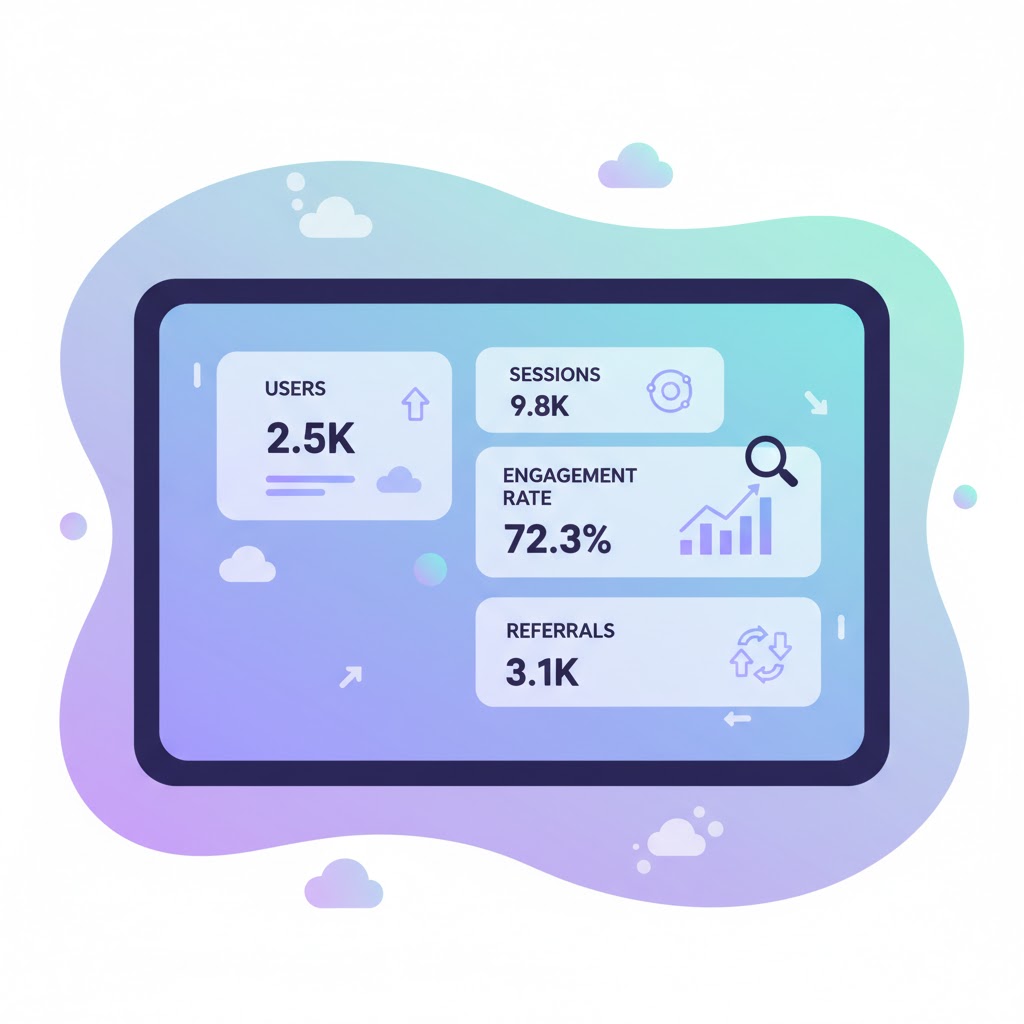
3. Understand Engagement Rate
GA4 Engagement Rate replaces bounce rate.
An engaged session lasts 10 seconds or more, or triggers an event.
4. Find Bounce Rate (If needed)
Bounce Rate exists in GA4, but reversed:
Bounce Rate = 100% – Engagement Rate
To see it:
- Go to Reports → Engagement → Pages and Screens
- Customize report to add Bounce Rate
5. Track Conversions in GA4
Go to:
Reports → Engagement → Conversions
You’ll see:
• leads
• purchases
• button clicks
• signups
• downloads
This is how most businesses measure success.
6. Use Explorations (Advanced Insights)
Explorations are powerful:
• funnel analysis
• path analysis
• user journeys
• segment overlap
• cohort analysis
They turn simple tracking into real decision-making tools.
7. Predictive Metrics (New for 2025)
GA4 now provides:
• Purchase Probability
• Churn Probability
• Revenue Prediction
These forecasts help brands plan marketing with accuracy.
8. Best Practices for GA4 in 2025
Follow these to use GA4 like a pro:
• Always use UTM tags
• Mark important events as conversions
• Review your reports weekly
• Audit your tracking every 3 months
• Use GTM instead of adding code manually
• Link Search Console for SEO insights
• Use funnels to find drop-offs
• Read your Realtime report after every change
This completes your GA4 Setup Guide with everything a beginner or marketer needs.
FAQs for GA4 Setup Guide
1. Where do I find referral traffic in GA4?
You can find referral traffic in GA4 by navigating to Reports → Acquisition → Traffic Acquisition, then filtering the Session Default Channel Group to “Referral.” This shows all traffic coming from external websites.
2. How do I monitor referral traffic in GA4?
You can monitor referral traffic by creating a comparison filter inside the Traffic Acquisition report. Set the traffic type to “Referral” to track volumes, engagement, conversions, and trends over time.
3. How do I see where traffic is coming from in GA4?
Go to Reports → Acquisition → User Acquisition or Traffic Acquisition. Here you’ll find traffic sources such as Organic Search, Direct, Paid Search, Referral, and Social.
4. What is referral traffic in Google Analytics?
Referral traffic is any visit that comes from another website that links back to your site. GA4 records the referring domain and referral path so you can see exactly who is sending visitors.
5. How do I see the referring URL in GA4?
Open Traffic Acquisition → Add Dimension → Session Source/Session Source Platform/Session Referrer. This displays the exact referring URLs.
6. What is unassigned traffic in GA4?
Unassigned traffic represents sessions that Google Analytics could not categorize into a channel. Reasons often include improper UTM usage, missing source data, or tracking setup errors.
7. What are the types of goals (conversions) in GA4?
GA4 does not use “goal types” like Universal Analytics. Instead, it tracks events, and you mark any event as a conversion. This gives flexible tracking for scrolls, clicks, sign-ups, and purchases.
8. What is an example of a goal in GA4?
Examples of GA4 conversion goals include purchase, lead form submission, button click, file download, or scroll depth reaching 90%.
9. What is used to create Smart Goals in Google Analytics (UA)?
Smart Goals were powered by machine learning in Universal Analytics. GA4 does not support Smart Goals, because conversions are 100% event-driven.
10. How do I create goals in Google Analytics 4?
Go to Admin → Events → Mark as Conversion. Any event can become a goal—either automatically collected or custom-created.
11. How do I create goals in GA4 using Google Tag Manager (GTM)?
Using GTM, create a custom tag (e.g., button click), send it as an event to GA4, then go to Admin → Events → Mark as Conversion. Digital Geetha often recommends testing tags in Preview Mode before publishing.
12. What is Google Analytics 4 used for?
GA4 is used to track website and app performance, measure user behaviour, and analyze traffic sources, engagement, and conversions. Its event-based tracking provides deeper insights than Universal Analytics.
13. How can GA4 be applied in real-world scenarios?
Businesses use GA4 to track user journeys, measure marketing ROI, analyze high-performing channels, optimize content, and improve funnels. Digital Geetha uses GA4 heavily for SEO and conversion strategy.
14. What can I use Google Analytics for?
You can use Google Analytics to measure website traffic, monitor user engagement, analyze marketing effectiveness, and improve conversion performance.
15. What is the best practice of GA4?
Best practices include:
• setting up enhanced measurement
• using UTM parameters
• enabling Google Signals
• linking GA4 to Google Ads & Search Console
• configuring conversions
• using GTM for tracking events
16. What is the difference between Google Analytics and GA4?
The biggest difference is that GA4 uses event-based tracking, while Universal Analytics used session-based tracking. GA4 also provides cross-device analytics, predictive metrics, and privacy-focused measurement.
17. Is GA4 replacing Google Analytics?
Yes. As of July 2023, Universal Analytics stopped processing data, and GA4 became Google’s only active analytics platform.
18. What is the difference between Google Analytics and Search Console?
Google Analytics tracks user behavior on your website, while Search Console tracks how your site performs in Google Search, including impressions, clicks, and indexing issues.
19. What is the key difference between GA4 properties and Universal Analytics properties?
GA4 properties use events instead of hits, offer longer data retention, and provide predictive insights, whereas UA relied mainly on sessions and pageviews.
20. Is Google Analytics free?
Yes, GA4 is free for all users. The paid version is Google Analytics 360, designed for enterprises.
21. How to use Google Analytics for small businesses?
Small businesses can use GA4 to check traffic, understand customer journeys, track conversions, measure marketing campaigns, and improve content performance. Digital Geetha helps brands set up easy-to-follow dashboards for this.
22. How do I configure Google Analytics for my website?
Install GA4 via Google Tag Manager, WordPress plugin, or manual code insertion into the <head> of your site, then verify data in your Realtime dashboard.
23. How do I access Google Analytics for my website?
Log in to analytics.google.com, select the right GA4 property, and open the Reports or Realtime section.
24. How do I use Google Analytics for YouTube?
Link YouTube Studio → Advanced → Google Analytics Property. You can track engagement and user interactions on your channel.
25. How do I learn Google Analytics for free?
Google offers free training through Skillshop, plus real-world tutorials from industry experts like Digital Geetha.
26. How do I set up GA4 step-by-step?
Steps:
- Create GA4 property
- Add data stream (Web/App)
- Install GA4 tag via GTM or code
- Enable enhanced measurement
- Configure events
- Mark conversions
- Link Google Ads & Search Console
- Validate with Realtime
27. Is GA4 hard to learn?
GA4 has a learning curve, but once you understand events, conversions, and reports, it becomes intuitive. Digital Geetha recommends practicing inside Realtime, Events, and Acquisition reports.
28. How to find bounce rate in GA4?
Bounce rate is tucked under Reports → Engagement → Pages and Screens, but only after you enable it under Admin → Reporting Identity → Add Metrics.
29. How is bounce rate calculated in GA4?
GA4 bounce rate = 100% – Engagement Rate, where an engaged session lasts 10+ seconds or triggers at least one event.
30. What replaced Bounce Rate in GA4?
GA4 introduced Engagement Rate, which is more accurate and user-focused.
31. What is a good bounce rate?
A good bounce rate varies:
• Blogs: 35–60%
• Landing pages: 60–90%
• Service sites: 30–60%
32. What is a good engagement rate in GA4?
Healthy engagement rates typically range:
• Blogs: 50–65%
• Service sites: 50–60%
• eCommerce: 50–60%
33. What is the difference between Google Tag Manager and Google Analytics?
Google Tag Manager manages tracking tags; Google Analytics processes and reports the data. Many professionals, including Digital Geetha, use both together.
34. How do I sign up for Google Analytics 4?
Visit analytics.google.com, click Start Measuring, create an account, and set up a GA4 property with your website details.
35. How do I see where traffic is coming from in Google Analytics?
Go to Acquisition → Traffic Acquisition. Filter by Source, Medium, or Campaign to see exactly where users originate.
Conclusion
Setting up GA4 may feel new, but once you understand the steps, it becomes a powerful tool that helps you track every important action on your website. GA4 gives you clearer insights, better user behavior data, and more accurate reporting than any version of Google Analytics before it. With event-based tracking, improved engagement metrics, cross-device measurement, and predictive analysis, GA4 is built for the future of digital marketing.
Whether you’re a beginner or an experienced marketer, learning GA4 is one of the best decisions you can make for 2025 and beyond. The more you understand your audience, the smarter your marketing decisions become. And GA4 gives you all the data you need to grow confidently, improve performance, and make every click count.
If you want personalized help setting up GA4, tracking conversions, improving your analytics, or building a complete digital marketing strategy, visit my website for step-by-step guides, resources, and expert support.
Explore more at: https://digitalgeetha.com/
Your next step toward smarter analytics starts here.